Viser opslag med etiketten ESP 8266-12. Vis alle opslag

søndag den 4. december 2016

Connecting an ESP8266-12 to a DS1820 thermometer and do a http post data to the internet.

Here's how to connect an ESP8266-12 to a DS1820 thermometer and perform a

Pre-requisites! I'll be using these components:

@ A standard ESP8266-12 on a breakout-board such as the one shown.
@ Three 4.7k resistors.
@ A 3v battery (I use a CR123a) for powering the ESP826612.
@ A DS1820 (i use the DO-92 packaged version below)

The following requirements should be met:

@ All connections, including those on the The ESP 8266-12 on the breakout-board, are solid and conduct power as they should.
@ The battery holds at least 2.8v of power.
@ The ESP8266-12 has been programmed with the following sketch:


#include OneWire.h
#include DallasTemperature.h
#include ESP8266WiFi.h
#include ESP8266WiFiMulti.h
#include ESP8266HTTPClient.h

#define ONEWIRE_PIN 13

OneWire oneWire(ONEWIRE_PIN);
DallasTemperature sensors(&oneWire);

boolean TempSensorAvailable = false;
DeviceAddress TempSensor;
float tempCtry1;
float tempCtry2;

//AP definitions
#define AP_SSID "your wifi-network name here"
#define AP_PASSWORD "wifi password here"

void setup() {

//enable this to test from the arduino serial monitor
Serial.begin(74880);

sensors.begin();

Serial.print("Found ");
Serial.print(sensors.getDeviceCount(), DEC);
Serial.println(" OneWire device(s).");

// report parasite power requirements
Serial.print("Parasite power: ");
if (sensors.isParasitePowerMode()) Serial.println("ON");
else Serial.println("OFF");

if (!sensors.getAddress(TempSensor, 0)) {
Serial.println("No OneWire Device Found");
} else {
TempSensorAvailable = true;
Serial.println("OneWire Device Found");
sensors.setResolution(TempSensor, 12);
}
}

void loop() {

wifiConnect();
postTemperature();


delay(60 * 1000);
}

void postTemperature()
{
sensors.requestTemperatures(); // Get temprature
tempCtry1 = sensors.getTempC(TempSensor); // save temprature
sensors.requestTemperatures(); // Get temprature
tempCtry2 = sensors.getTempC(TempSensor); // save temprature

HTTPClient http;
http.begin("http://");
http.addHeader("Content-Type", "application/json");
String postMessagePart1 = String("{ 'sensorId' : 'L15-Out1', 'temperature' : '");
String postMessagePart2 = String("', 'postAttempts' : '");
String postMessagePart3 = String("', 'batteryVoltage' : '");
String postMessagePart4 = String("' }");
String postMessage = postMessagePart1 + ((tempCtry1+tempCtry2)/2) + postMessagePart2 + retries + postMessagePart3 + vdd + postMessagePart4 ;
int httpCode = http.POST(postMessage);
Serial.print("http result:");
Serial.println(httpCode);

http.writeToStream(&Serial);
http.end();

if ( httpCode != 200 && httpCode != 201)
{
delay(1000);
postTemperature();
}
}

void wifiConnect()
{
Serial.print("Connecting to AP");
WiFi.begin(AP_SSID, AP_PASSWORD);
while (WiFi.status() != WL_CONNECTED) {
delay(1000);
Serial.print(".");
}

Serial.println("");
Serial.println("WiFi connected");
}


Don't forget to import the libraries into the arduino IDE environment.
Given the above is in order, go ahead and connect the components as per the following pictures:


- The RESET and GPIO16 pins should be connected - this enables the ESP 8266-12 to wake up from deep sleep mode.
- The GPIO0 and GPIO2 should be connected to VCC with a 4.7k resistor in the middle. This is to prevent a so-called 'zombie-mode', in which the ESP8266-12 has trouble waking up from deep sleep.
- The data-line and the VCC line of the DS1820 should be joined by a 4.7k resistor, or the temperature will not be read.
- The data-line of the DS1820 should be connected to the GPIO13-pin of the stand-alone ESP8266-12, as this corresponds with the "#define ONEWIRE_PIN 13" statement of the code.


With the ESP connected like so, my ESP8266-12 happily does a http post to my web-service every 60 seconds, before repeating the cycle.

You should put the ESP8266-12 into deep sleep mode if you power your thermometer via battery.


mandag den 7. november 2016

Running a standalone ESP 8266-12 - and returning from deep sleep

Further to my post on programming a standalone ESP8266-12, this post describes how to actually run the ESP when it's been programmed. Specifically, how to wake it up from deep sleep.

Disclaimer: This post describes the bare neccessities for making the unit run. For production purposes it may be necessary to pull other pins high/low, add capacitors for smoothing out currents, so on and so forth. I came across this post, which suggested the following: "A large capacitor (suggest using 470 uF) across the Vcc to Gnd rails on your breadboard or PCB is a vital ingredient that will minimize reset inducing voltage fluctuations.
A 0.1 uF decoupling capacitor across the ESP8266 Vcc to Gnd inputs very close to the pins (within 1/2 inch). DO NOT SKIP THIS COMPONENT! This cheap yet often overlooked component, when missing, is the root cause of ESP8266 resets."]

Pre-requisites! I'll be using these components:

@ A standard ESP8266-12 on a breakout-board such as the one shown.
@ Two 4.7k resistors.
@ A 3v battery (I use a CR123a) for powering the ESP826612.

The following requirements should be met:

@ All connections, including those on the The ESP 8266-12 on the breakout-board, are solid and conduct power as they should.
@ The battery holds at least 2.8v of power.
@ The ESP8266-12 has been programmed with the following sketch:


// Time to sleep (in seconds):
const int sleepTimeS = 5; // 5 seconds

void setup() {

  delay(2000);                      // Wait for two seconds
  ESP.deepSleep(sleepTimeS * 1000000);
}

// there's nothing in the loop section - all's done in the setup() section.
void loop() {
}


Given the above is in order, go ahead and connect the components as per the following pictures:


- The RESET and GPIO16 pins should be connected - this enables the ESP 8266-12 to wake up from deep sleep mode.
- The GPIO0 and GPIO2 should be connected to VCC with a 4.7k resistor in the middle. This is to prevent a so-called 'zombie-mode', in which the ESP8266-12 has trouble waking up from deep sleep.

With the ESP connected like so, my ESP8266-12 happily resets/wakes up, does nothing for two seconds, then sleeps again for five seconds before repeating the cycle.

If you look to the tiny blue LED situated just below the ESP and the antenna, you will notice it blinking every ~ 7 seconds, to indicate when the ESP comes back to life.


I measure 15 microampere (uA) when in deep sleep. This will keep the unit running for a months on end.

søndag den 6. november 2016

Programming a standalone ESP 8266-12 using Arduino IDE and a FT232RL FTDI USB to TTL Serial Adapter


The ESP 8266-12 won't last long on a batteries; it uses 80 mA per hour. So to use it for last-lasting battery-powered sensors it's necessary to put it in sleep mode and, furthermore, use a stand-alone version without all the development board components. So this post will be about how to program a stand-alone ESP 8266-12.

Pre-requisites! I'll be using these components:

@ A standard ESP8266-12 on a breakout-board such as the one shown.
@ A FT232RL USB to TTL serial adapter, for programming.
@ A 3v battery (I use a CR123a) for powering the ESP826612.
@ The Arduino IDE - I'm using version 1.6.12 for this tutorial.

The following requirements should be met:

@ The FT232RL is recognized by the PC and shows as a virtual COM port.
@ All connections, including those on the The ESP 8266-12 on the breakout-board, are solid and conduct power as they should.
@ The battery holds at least 2.8v of power.
@ The ESP core-libraries have been imported into the Arduino IDE.

Connect the components as per the following pictures:


It's important that the GPIO 0 pin is connected to ground - that's the signal to the ESP8266-12 that it's about to be programmed. I have found it's also important to power the ESP off and then on again before programming it from the Arduino IDE.

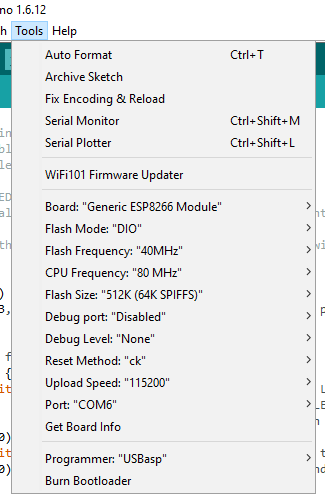
Having connected the above, we can move to the Arduino IDE. From the ESP-examples - File=>Examples=>ESP - load a basic sketch. Now head to the 'Tools' menu and ensure the below settings:


Again, remember to do a power-cycle of the ESP 8266-12 before programming it.

Given the above, it should be a simple matter of hitting 'Upload' and the Arduino IDE should program - 'flash' - the ESP8266-12.

Please note that the above it what works for me. Your USB-to-TTL module may be different, your PC may need a different upload speed, so on and so forth. You'll need to experiment a bit - as did I - if the above doesn't work straight away.

In a further blog-post I'll then document how to run the ESP - including bringing it in and out of deep sleep - after having programmed it.

Hope this helps you out!

Buy me a coffeeBuy me a coffee